




Post-BFCM New Customer Retention: Turn First-Time Buyers Into Loyal Customers
Table of contentsPost-BFCM New Customer Retention: What Really HappenedPost-BFCM RFM Analysis: Mapping...
views
78 articles about General.
Table of contentsPost-BFCM New Customer Retention: What Really HappenedPost-BFCM RFM Analysis: Mapping...

Q4 eCommerce strategy isn’t just another quarter, it’s the main event for...

Last year, Singles’ Day shoppers spent noticeably more per transaction than those...
With Halloween campaigns driving millions in sales each year, the difference between...

A Data-Driven Analysis for Apparel & Accessories Ecommerce Brands Most ecommerce brands...

Think California tops the charts for online shopping spend? Not quite. When...

In the ever-evolving world of digital marketing, staying ahead of the curve...

If you’ve ever worked with a marketing agency that didn’t meet your...

In the fast-paced world of digital advertising, your ad creatives are your...
 See AdScale In Action
Select your ecommerce platform:

We sent you an email
Check your inbox for the installation instructions of AdScale for your WooCommerce Store
If it hasn’t, click here.
How to install the AdScale Plugin:
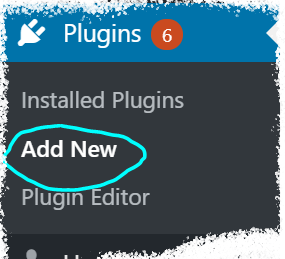
On your Woo store admin, go to
Plugins > Add New
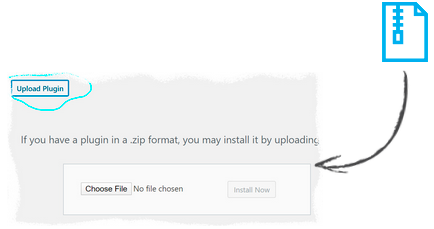
Upload the Plugin file and
click on Install Now
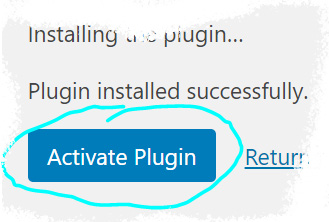
Click on Activate Plugin
We sent you an email
Check your inbox for the installation instructions of AdScale for your WooCommerce Store

If it haven’t, click here.
How to install the AdScale Plugin:
On your PretaShop admin, go to
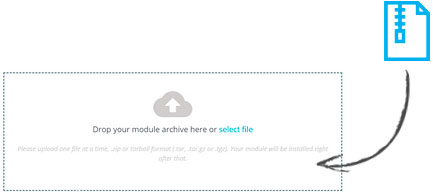
Modules > Module Manager > Upload Module
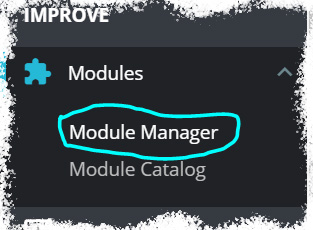
Upload the module file
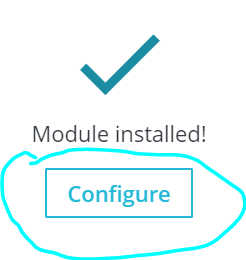
Click on Configure
We sent you an email
Check your inbox for the installation instructions of AdScale for your WooCommerce Store

We sent you an email
Check your inbox for the installation instructions of AdScale for your WooCommerce Store


If it haven't, click here.
How to install the AdScale Plugin on Magento 1.9
Extract the plugin file, and using your FTP tool Upload the folder to the Magento Directory.
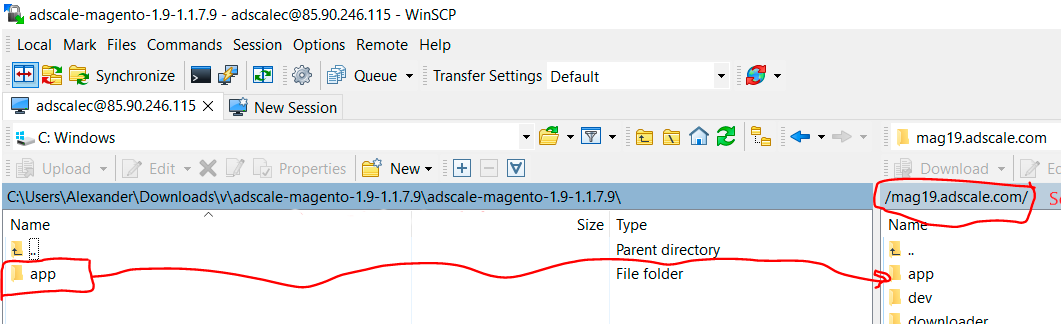
Go to Magento Admin Panel > System > Configuration
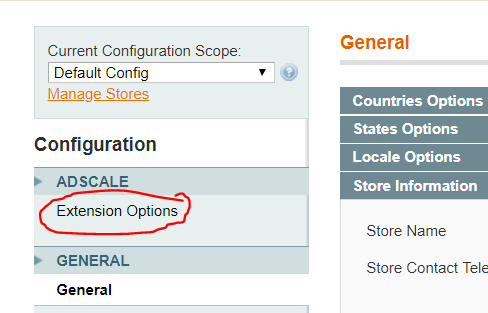
Under AdScale, click on Extension Options
Having troubles? Contact our support team
If it haven't, click here.
Extract the plugin file, and using your FTP tool Upload the folder to the Magento Directory.
Run the following commands in PHP:
Go to Magento Admin > Stores > Configuration and Click on AdScale > Enable
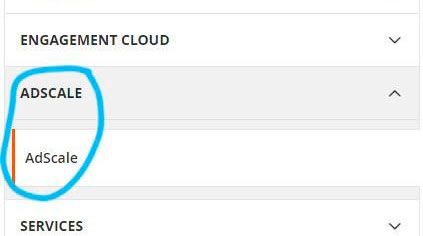
Having troubles? Contact our support team
If it haven't, click here.
Extract the plugin file, and using your FTP tool Upload the folder to the Magento Directory.
Run the following commands in PHP:
Go to Magento Admin > Stores > Configuration and Click on AdScale > Enable
Having troubles? Contact our support team
If it haven't, click here.
Extract the plugin file, and using your FTP tool Upload the folder to the Magento Directory.
Run the following commands in PHP:
Go to Magento Admin > Stores > Configuration and Click on AdScale > Enable
Having troubles? Contact our support team
We sent you an email
Check your inbox for the installation instructions of AdScale for your WooCommerce Store
Your download will strat in a few seconds.
If it haven’t, click here.
How to install the AdScale Plugin:
On your OpenCart admin, go to Extensions > Installer
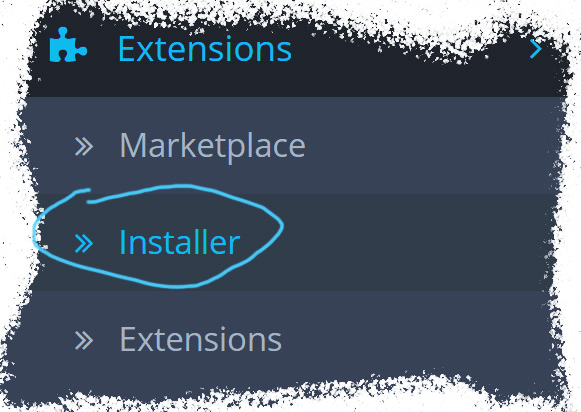
Upload the plugin file
Go to Extensions & pick Modules (under Extension Type)
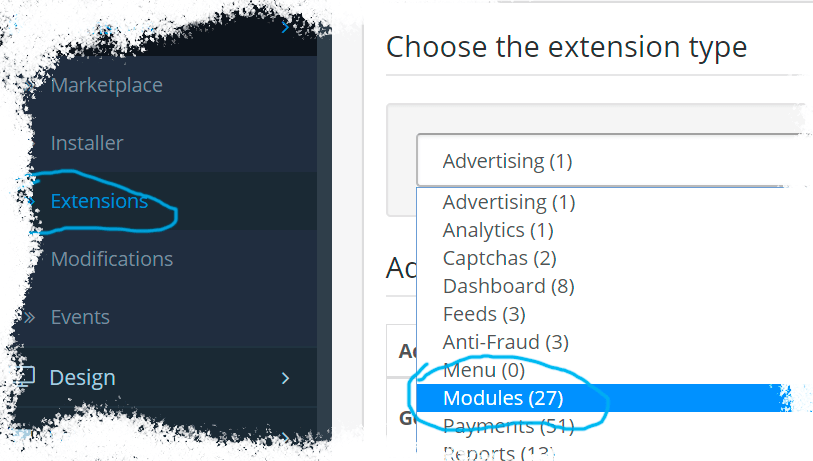
Next to AdScale,
click:  ,
,
and then 
We sent you an email
Check your inbox for the installation instructions of AdScale for your WooCommerce Store
We sent you an email
Check your inbox for the installation instructions of AdScale for your WooCommerce Store
 Shopify
  WooCommerce
  PrestaShop
  Magento
  BigCommerce
  Opencart
  Wix
Wix